Showing posts with label LG. Show all posts

Sunday, September 1, 2013

How to Install ClockworkMod Recovery on the LG Esteem


With the help of ROM Manager application, you can easily install the widely popular ClockworkMod Recovery on the LG Esteem smartphone. It has been the easiest method available to install the recovery, no need to issue commands, nothing. If you don’t know how you can use the ROM Manager app to flash the recovery, here’s a guide for you.

I. Before You Begin:

1. Your device must be rooted. See our guide on how to root the LG Esteem.
2. This should install the latest version of ClockworkMod Recovery on your device.

II. Downloading Required Files:

1. ROM Manager (Google Play Link)

III. Installing ClockworkMod Recovery on the LG Esteem:

1. Download the ROM Manager App from Play Store and install it on your device.
2. Open the app from your device’s Menu.
3. Tap the option labeled Flash ClockworkMod Recovery.
4. Choose your device model and follow the on-scree instructions.
5. You’re done now!
There you go, you now have a fully-working version of CWM Recovery on your device. You can use it to flash custom ROMs on your device and to take backup of your current ROM.

Monday, March 18, 2013

How to Unroot the LG Ally


Unrooting the LG Ally smartphone is a bit tricky, as the process involves some steps that the novice users might not be aware of. But you don’t have to worry as we have simplified everything for you in the following guide. If you’ve rooted your LG Ally and now want to return to stock, this guide is going to be useful for you. Let’s see how you can unroot your LG Ally smartphone.

I. Before You Begin:

1. You should have rooted your device using the guide given here.
2. This will not flash the stock recovery on your device.
3. The following procedure works on Windows based PCs only.

II. Downloading Required Files:

1. LG Drivers (Download link’s given at the top, in the first post)
2. Root Package (Download link’s given in the first post, in Step-1)

III. Unrooting the LG Ally:

1. Download and place both the files on your Desktop.
2. Install the LG USB Drivers, they’re necessary in order for your device to be recognized by your PC.
3. Extract the Root Package archive to your Desktop. You should get a folder called LGNPST.
4. Inside the folder, you’ll have some files that can be installed on your PC. Install them in the following order:
LGNPST_General_v1.2_Lab_Version.msi
LGNPST_Components_Ver_4_0_22_0.msi
LGNPST_GenericModels_Ver_4_0_9_0.msi
5. After installing all the files mentioned above, go to the next step.
6. Copy the LGNPST.exe file you’ve inside the LGNPST folder over to C:\LG Electronics\LGNPST.
7. On your Desktop, there’ll be a shortcut named LGNPST, delete it.
8. Head to C:\LG Electronics\LGNPST folder and right-click on the file named LGNPST.exe and choose Send to>>Desktop (create shortcut).
9. Copy the VS740.dll file from the folder you extracted on your Desktop over to C:\LG Electronics\LGNPST.
10. Open a Command Prompt Window in the C:\LG Electronics\LGNPST folder. To do so, just go inside that folder, press and hold the Shift button on your keyboard and right-click on any empty area on the screen, then choose Open command window here.
11. Type in the following command into the Command Prompt Window:
regsvr32 VS740.dll
12. You should see a confirmation message on your screen that the file is successfully registered.
13. Open the LGNPST shortcut you created on your Desktop by double-clicking on it.
14. Enable USB debugging on your smartphone from Menu>>Settings>>Applications>>Development>>USB debugging.
15. Connect your smartphone to your PC using the USB cable.
16. Your smartphone will be shown on the LGNPST tool interface. Click on it.
17. Choose File>>Select DLL and then select the VS740.dll file.
18. From the provision tab, choose the upgrade option.
19. Click on BIN File option and select the BIN folder, it’s inside the LGNPST folder on your Desktop.
20. Type *.* in the Open BIN File window.
21. Click on the file named VS740ZV6_01.TOT and then hit Open.
22. Check the box given next to the SCR File field and then in the browse folder section, choose the SCR folder you’ve inside the LGNPST folder on your Desktop.
23. Now, select the file named VS740ZV6_01.SCR and click Open.
24. Make sure that the option named NAM2 is unchecked.
25. Checkmark the box given next to PRL.
26. Click on the folder icon given next to the NAM1 option, choose the PRL folder which is located inside the LGNPST folder on your Desktop.
27. Select the 58005 – OEM EVDO DEFAULT.PRL file and click Open.
28. Hit the Start button in the tool and the script should run to unroot your device.
29. The process could take as much as 30 minutes. So, please be patient.
30. Your device should reboot after the process has finished.
31. Turn OFF your device.
32. Remove the batter from your device.
33. Replace the battery in your device, do NOT turn ON your device.
34. Now, press and hold the Volume UP+Home+End keys together on your device. It should factory reset your device.
35. Reboot your device in the normal mode.
36. Dial *228# from your device and select the Option #2.
37. Next, dial *#*#CHECKIN#*#* to install the OTA updates.
38. Your device’s now unrooted !
Wonderful! You’ve successfully unrooted your LG Ally smartphone. Although the procedure wasn’t that short nor for beginners, you did it successfully!
SOURCE:androidforums

Friday, February 22, 2013

How to Unroot the LG Esteem


If you’ve rooted your LG Esteem smartphone but aren’t satisfied with the features it offers you and want to go back to that simple state, unrooted one, then here’s a guide for you. The process to unroot the LG Esteem is very easy, even your kid won’t have any problem doing it, let’s get started.

I. Before You Begin:

1. You should have rooted your device using the procedure given here.

II. Unrooting the LG Esteem:

1. On your device, go to Menu>>Settings>>Privacy and tap Factory Data Reset option.
2. If you get any prompts, just hit the Yes option.
3. And you’re done now!
Great! You’ve successfully unrooted your device, its warranty is back now!
SOURCE:xda

Wednesday, February 13, 2013

How to Unroot the LG Optimus T


Going to return your phone to T-Mobile for any warranty kind of purpose? Make sure to unroot the device first and only then visit the T-Mobile employees. Unrooting should help you reclaim the warranty of your device and here’s how you can unroot, in other words, remove SU binaries from your LG Optimus T smartphone. Here you go:

I. Before You Begin:

1. You must have rooted your device using the method provided in this guide. If you used any other method to root the device, the following procedure won’t work for you.
2. Charge your device to have at least 60% of battery life left.

II. Downloading Required Files:

1. z4Root (It is attached in the first post of the thread)

III. Unrooting the LG Optimus T:

1. Download the z4Root App to the Desktop of your PC.
2. Connect your device to your PC using the USB cable.
3. Copy the z4Root file over to the root folder of your SD card. It is the topmost folder you see when you open My files.
4. Disconnect the device after the file is copied.
5. Open My files on your device and install the z4Root App you just copied.
6. Launch the app on your device from the Menu.
7. Choose Unroot option in the app and your device should be unrooted in a moment.
8. Your device should be now unrooted!
You’re now safe to take your phone to the T-Mobile store, they won’t be able to know that you’d rooted your phone once!

Tuesday, February 12, 2013

How to Install ClockworkMod Recovery on the LG Optimus T


The T-Mobile version of the LG Optimus supports the ClockworkMod Recovery allowing you to play with custom ROMs and tweaks just like you’re now playing with apps on your smartphone. A custom recovery has become an essential part of a rooted phone and if you haven’t yet installed it on your device, here’s how you can do it. The following guide shows you how you can install ClockworkMod Recovery on the LG Optimus T smartphone.

I. Before You Begin:

1. You must have rooted your device before doing this procedure. Please head to our How to Root the LG Optimus T procedure first, finish it, then return to this procedure and continue.
2. Make sure your device has at least 60% of battery life left.

II. Downloading Required Files:

1. Flash Image (Download link’s given in the second post)
2. Recovery Image (Download link’s given in the second post)
3. Terminal Emulator (Google Play Link)

III. Installing ClockworkMod Recovery on the LG Optimus T:

1. Download and place both the archives on your Desktop.
2. Install the Terminal Emulator App on your device from Google Play.
3. Extract files from both the archives to your Desktop. You should get a Recovery Image and a Flash Image file.
4. Connect the device to your PC using the USB cable.
5. Copy the Recovery Image and Flash Image files over to the root folder of your SD card.
6. Disconnect the device after the files have been copied to the device.
7. Launch the Terminal Emulator App on your device from the Menu.
8. Run the following command using the app:
su
9. It should ask for Superuser permission, tap the Allow button.
10. Now, run the following commands using the app. Press ENTER after each line:
mount -o remount,rw -t yaffs2 /dev/block/mtdblock1 /system
cat /sdcard/flash_image > /system/bin/flash_image
chmod 755 /system/bin/flash_image
mv /system/etc/install-recovery.sh /system/etc/install-recovery.sh.bak
(IMPORTANT NOTE - If you get an error on the line above such as "file does not exist" ignore the error and keep going.)
mount -o remount,ro -t yaffs2 /dev/block/mtdblock1 /system
flash_image recovery /sdcard/recovery-RA-GNM-OPT-T-test.img
reboot recovery
11. Your device should reboot into the ClockworkMod Recovery Mode.
Congrats! Your LG Optimus T now have the CWM Recovery installed on it and custom ROMs are just a few taps away from you!

Thursday, February 7, 2013

How to Root LG Nitro HD


LG Nitro HD is an Android smartphone by LG which comes from the family of the first 4G LTE smartphone series. It was launched in South Korea in the year 2011 and then it became available in all the shops across the world. Being an Android phone, you can root it to gain access to system files so you can install the applications on this phone which require Super user access. The following guide will help you to root your LG Nitro HD smartphone.

I. Before You Begin:

  1. Your phone’s warranty will be voided once it is rooted, you are rooting your phone keeping this in mind. However, you will be able to get back the warranty by applying either stock firmware or unrooting your phone.
  2. Charge your phone to have at least 60% of battery to ensure a smoother rooting process.
  3. You must have a PC running any Windows OS version.

II. Downloading Required Files:

  1. Download the LG Nitro HD Rooting Package from here.

III. Rooting LG Nitro HD:

  1. Unzip the files from the Rooting package you downloaded and place the files on your Desktop.
  2. On your phone, enable USB debugging . To do so, head to Menu>>Settings>>Applications>>Development>>USB debugging and tick-mark the box.
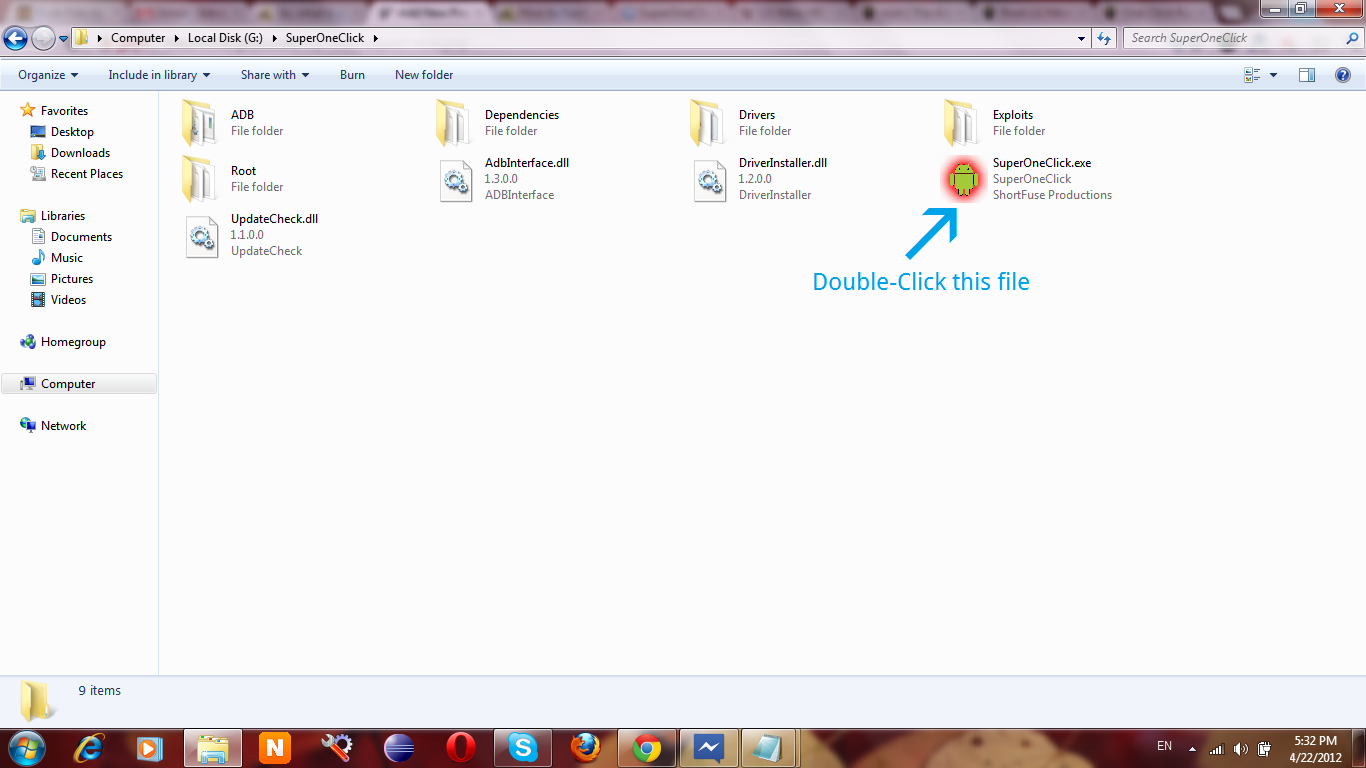
  3. Now, launch the SuperOneClick Rooting tool by double-clicking on SuperOneClick.exefile. See the following screenshot.
    Root-LG-Nitro-HD-SuperOneClick
    Double-Click SuperOneClick.exe file
  4. Connect your LG Nitro HD to your PC using the USB cable.
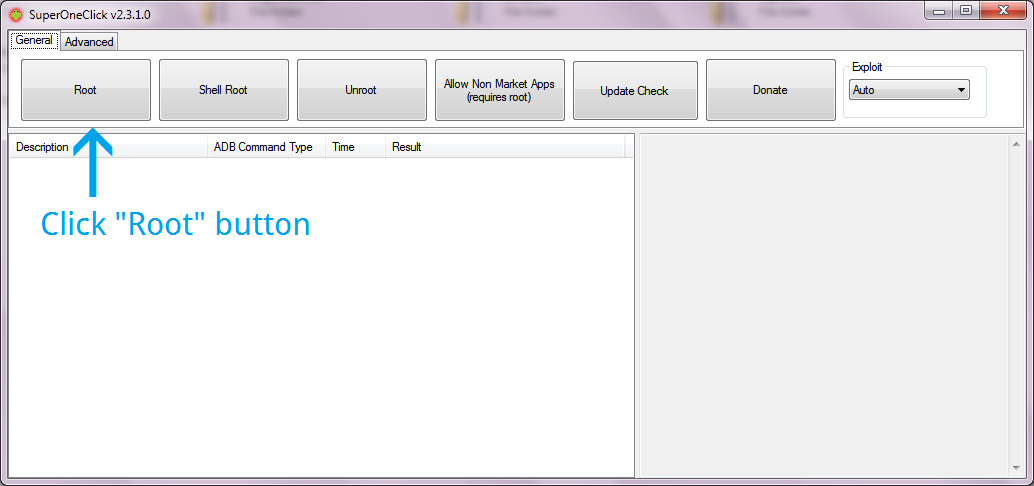
  5. From the main interface of the SuperOneClick tool, click on the Root button to begin rooting your phone. You will have a screen similar to following.
    Root-LG-Nitro-HD-SOC-Interface
    Click the "Root" button
  6. It will take some to finish the rooting process. Once it is done, you will see the success message in the SuperOneClick tool.
That’s all. You have successfully rooted your LG Nitro HD smartphone using the simple method described above.

Tuesday, February 5, 2013

How to Root the LG GT540 Optimus


Enabling Root access on the LG GT540 doesn’t seem to be a complicated process, you just have to dial a specific number and enable the root access from there. It is as simple as activating callertune from your network operator. To make it more easy, here’s a step-by-step guide that will teach you how to root the LG GT540 Optimus smartphone. Here you go:

I. Before You Begin:

1. The warranty of the device will be voided once you root it.

II. Rooting the LG GT540 Optimus:

1. Open the Dialler on your device and dial the following number:
3845#*540#
2. You will have a few options on your screen. Choose the option labeled Module Test.
3. Now, select the Stability Test followed by Enable Root Permission.
4. It should ask you to enter the password. Input the following:
:SWIFT::GT540:
5. The root access will then be enabled on your device.
6. Reboot your device.
7. When it boots up, head to Google Play and install the Superuser app.
8. Your device should be completely rooted now!
The LG GT540 Optimus itself allowed us to gain the root access and with the help of the Superuser, we now have privilege to provide system access to applications on your device.
SOURCE: modaco